Pages

Improve Windows 10 Performance, Part 5 of 5

Remove Unwanted Services from Windows Startup

STEP 1: Open the Services Manager using one of the following:

1.a. Press the WIN+X keys together to show the quick access menu and select the "Computer Management" option. Next select "Services and Applications -> Services" in the left panel.

1.b. Or right-click "This PC" icon on the Desktop and select the "Manage" option.

1.c. Or press WIN+R keys together to launch the RUN dialog box and type services.msc and press Enter. It'll directly open the Services Manager.
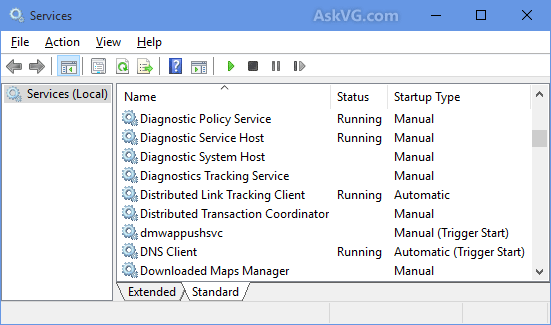
STEP 2: Services Manager shows a huge list of all Windows services along with their status and startup type. (select image to enlarge)

The Status section shows whether a service is currently running in background or not. The Startup Type section tells you whether a service is set to automatically start with Windows or not. The goal is to set some unnecessary services startup type to MANUAL so that they don't start automatically with Windows and thus don't consume system resources.
NOTE: It's recommended to set a service's startup type to MANUAL and not to DISABLED unless you are sure the service will never be needed. That's because if a service is set to MANUAL start and Windows needs the service, it'll be able to start the service and there will be no affect on OS functionality. But if a service is set to DISABLED and Windows requires that service, it won't be able to start the service and you may have problems.
Here are some services which can be safely set to MANUAL and often DISABLED:
  • Connected User Experiences and Telemetry (To turn off Telemetry and Data Collection) 
  • Diagnostic Policy Service
  • Diagnostic Tracking Service (To turn off Telemetry and Data Collection)
  • Distributed Link Tracking Client (If your computer is not connected to any network)
  • dmwappushsvc (To turn off Telemetry and Data Collection)
  • Downloaded Maps Manager (If you don't use Maps app)
  • IP Helper (If you don't use IPv6 connection)
  • Program Compatibility Assistant Service
  • Print Spooler (If you don't have a printer)
  • Remote Registry (You can set it to DISABLED for Security purposes)
  • Secondary Logon
  • Security Center
  • Touch Keyboard and Handwriting Panel Service (If you don't want to use the touch screen keyboard and handwriting features)
  • Windows Defender Service (If you don't use Windows Defender program)
  • Windows Error Reporting Service
  • Windows Image Acquisition (WIA) (If you don't have a scanner)
  • Windows Search (If you don't use Windows Search feature frequently)

Apart from the above services, you can also set a few other services startup type to MANUAL such as services installed by your graphics card driver (Intel, nVidia, AMD, etc), your sound card driver (Realtek, Creative, etc).

STEP 3: After configuring services startup type, close Services Manager and restart your computer for the changes to take effect.

If you have any issues with a software program, you can restore the services startup type to Automatic again using Services Manager to fix the issue.

Note: Be careful not to remove necessary services. Research the name when in doubt.

Credit: askvg.com

Improve Windows 10 Performance, Part 4 of 5

Remove Unwanted Programs from Windows Startup

There may be many unnecessary software programs which automatically start with Windows and keep running in the background. You can disable these programs from system startup to improve performance.

1. Right-click on the Taskbar and select the "Task Manager" option. You can also directly open the Task Manager by pressing the "Ctrl+Shift+Esc" keys together.

2. Go to the "Startup" tab and select the unwanted program in the list and click on the "Disable" button to remove it from startup. (You can disable more than one at a time.)

3. Restart your computer and the disabled program(s) will no longer start with Windows and you'll get a faster running system.

Note: Be careful not to remove necessary programs. Research the name when in doubt.

Credit: askvg.com

Improve Windows 10 Performance, Part 3 of 5

Disable Transparency on Start Menu, Taskbar and Action Center

Disabling transparency effects can also help in improving system performance. If you don't like the transparency effect on Windows 10 Start Menu, Taskbar and new Action (Notification) Center, you can turn the transparency effect off using these steps:

1. Open Settings app from Start Menu.

2. Go to the "Personalization -> Colors" page and set the option "Make Start, taskbar, and action center transparent" to Off.

This will immediately remove the transparency effect and make the Start Menu, Taskbar and Action Center opaque.

Note: Newer Windows 10 versions rename the option "Transparency effects".

Credit: askvg.com

Improve Windows 10 Performance, Part 2 of 5

Turn Off All Animations At Once

There is another way to turn off all animations in Windows 10. Follow these simple steps:

1. Open the Start Menu and click on Settings. Alternatively you can directly open Settings by pressing WIN+I keys together.

2. Go to the "Ease of Access -> Other options" page and set the option "Play animations in Windows" to Off.

It'll turn all animations off in Windows 10 which will improve your computer performance.

Credit: askvg.com

Improve Windows 10 Performance, Part 1 of 5

Disable Animations and Eye Candy Effects

By default, Windows 10 uses lots of animations and other effects, such as shadows, to provide an attractive user interface but these animations and effects can take up your system resources and can effect computer performance.

You can disable all of these animations and effects to improve Windows 10 performance using the following steps:

1. Press Win+R keys together to launch RUN dialog box. Type sysdm.cpl and press Enter. The System Properties window will open.

2. Go to Advanced tab and click on the Settings button under the Performance section.

3. In the Options window select Custom and uncheck the following:
  • Animate controls and elements inside windows
  • Animate windows when minimizing and maximizing
  • Animations in the taskbar
  • Fade or slide menus into view
  • Fade or slide ToolTips into view
  • Fade out menu items after clicking
  • Save taskbar thumbnail previews
  • Show shadows under mouse pointer
  • Show shadows under windows
  • Show translucent selection rectangle
  • Slide open combo boxes
  • Smooth-scroll list boxes
  • Use drop shadows for icon labels on the desktop

4. Apply the changes and close settings window.

Credit: askvg.com

Windows takes a page from Apple

Tech News and Views

I don't know how many of you have encountered the Windows S Mode, but I find it to be a real pain in the posterior. It comes on the Microsoft Surface and the HP Stream and many other systems. Users are forced to use the Edge browser, Bing and a lot of other proprietary programs.

Microsoft, in its infinite wisdom, has locked down Windows so that only apps from the Windows store will run on machines that come with the Windows S Mode installed. Sounds like Apple, doesn't it?

I tried installing Chrome, LibreOffice and even a new HP printer driver without success.

Users can have their S Mode computers converted to regular Windows Home, by signing in with a Microsoft account, but once the conversion is made, they can never go back. Frankly, I don't know why you would want to go back.

I guess it's time to switch to a Linux operating system.

Great way to measure true cell phone strength

Tech News and Views

The cell phone strength in Fairway Oaks is extremely low. Normally, I see just 1 bar on the phone, but I just read that the bars don't mean much and vary from phone to phone.

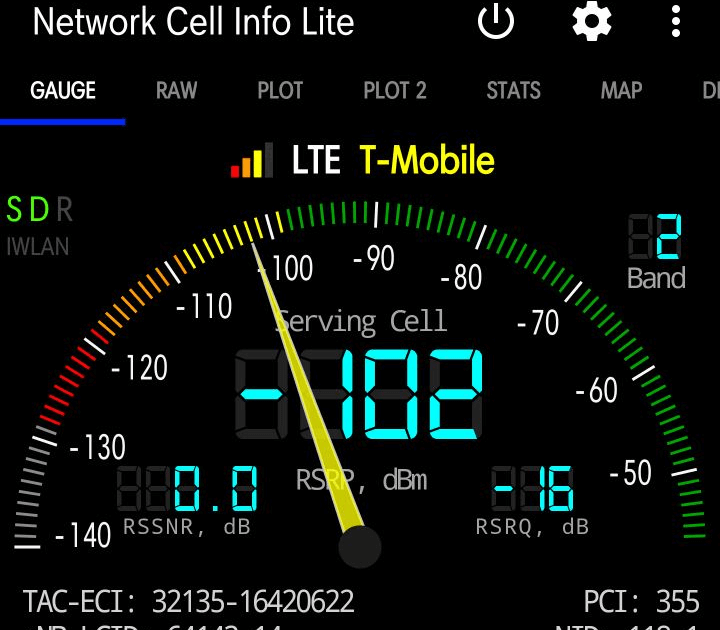
Here's a site that has great info on measuring cell phone strength. I downloaded one of the apps they suggested and found it very easy to use and very informative. It was Network Cell Info Lite. It is available for Android phones in the Google Play store.

The guide says: Once you have a dB reading, then you know just how good, average, or bad your signal strength is. -50 dB to -79 dB is very good signal. -80 dB to -99 dB is an average signal. -100 dB to -120 dB is below average or poor signal.


Executive Board Minutes


Computer Technology Club, Inc. – Executive Board Minutes
Mar 8, 2019

Alan Marcus, President, called the meeting to order at 9:00AM. Members in attendance: Bob Leiner, Jim Trimboli, Don Forgette, Bob Kenlay, Ron Kenyon, Bill Cahill, Linda Tingley and Alan Marcus.

Secretary’s report read by Bob Kenlay. No corrections or additions necessary.

Jim Trimboli read the Treasurer's Report. The current balance is $1370.39.

Future meeting topics:
Mar 20 - Managing Passwords by Nick Burke
Apr 17 - Spybot Anti-Beacon and Medical Alerts by Bob Kenlay
May 15 - One Drive and Windows Settings by Bob Kenlay
Don Forgette is reviewing the concept of “Cutting the Cord”. He will report on at a future board meeting as a possible club presentation.

The meeting adjourned at 9:40AM.

Respectfully submitted,
Bob Kenlay, Secretary

LABELS INDEX:

* (5) 2038 Problem (1) 3G - Goodbye (1) 5G (2) Abine Blur (1) Activation Lock (1) ADAS (1) Add sound to Impress (2) Address Book (1) AirTags (3) Amazon (3) Android (2) Android phone (2) Annoying Ads (1) Anti-Virus (1) App Store (1) Apple Bytes-2019 (12) Apple Bytes-2020 (19) Apple Bytes-2021 (13) Apple Bytes-2022 (10) Apple Bytes-2023 (11) Apple Glass (1) Apple Maps (1) Apple Repair (2) Apple Support (2) Apple TV (1) Apple Watch (6) Archives of CTC (7) ARM M1 Processor (1) Attachments (1) Audio Files (1) Autonomous (1) Avast (1) Backups (3) Bank-fraud (1) Battery Icon (1) Battery life (4) Battery Replacement (1) BCC (1) Best Buy (1) Big Data Mining (1) Big Sur (1) Bloatware (1) Board Minutes 2019 (12) Board Minutes 2020 (12) Board Minutes 2021 (12) Board Minutes 2022 (12) Board Minutes 2023 (12) Board Minutes 2024 (2) Boom Supersonic (1) Browser Attack (1) Browser Settings (1) Browser Tabs (1) browsers (1) Cache (1) Camera App (1) Caps Lock Indicator (1) Car charging (1) Car Door Lock (1) Cell phone strength (1) Cell Phones (1) Charge Cycles (1) Chevy Bolt (2) Chrome browser (2) Chromecast (1) Clone vs Image (1) Cloud Computing (1) Colorado (1) Construction (1) Contact Removal (1) Converting CDs (1) coronavirus (1) Coupons (1) COVID-19 (1) Covid-19 Detection (1) CPAP Recall (1) CTC 2023 ISP Survey (1) Customer Support (1) Dash Cams (1) Default browser (1) Delete Apps (2) Digital Estate Planning (1) Disable Thumbnails (1) Disk image (2) DogWalk malware (1) Domino's (1) Download Videos (1) Drive Partition (1) Driver Assistance (1) Drones (3) Drywall (1) DuckDuckGo (4) E-bikes (1) E.A.S.Y Pay (1) ebooks (1) Edge (1) Edge Browser (4) EdgeDeflector (1) Electric Bicycles (2) Electric car batteries (1) Electric Cars (6) Electric Trucks (1) email (1) Email Aliases (1) EV (13) EV Charging (1) External Storage (1) Facebook (4) FaceTime (3) Fake Reviews (1) Fast Charging (1) FBI Warning (1) Fiber Optic Cable (1) FIDO (1) File & Folder Icons (1) Firefox (2) Firefox Relay (1) Fitbit (1) Force Quit (1) Future Tech (1) Gmail (2) Gmail Contact (1) Googerteller App (1) Google (1) Google Maps (1) Google Music (1) Google Play Store (1) Google Search (1) Google TV (1) Group Text (1) Hacking (3) Harley-Davidson (1) Headlights (1) Healthcare (1) ID.4 (1) Identify Music (1) Image vs Clone (1) iMessage (2) Incognito Mode (1) Instagram (1) Intel Drivers (1) Internet Explorer (1) Internet of Things (1) Internet speed (1) iOS 13 (1) iOS 14 (2) iOS 15 (2) iPad (5) iPad Air (1) iPadOS 15 (2) iPhone (16) iPhone 12 (1) iPhone Battery (2) iPhone SE (1) iPod Touch (1) ISO Files (1) ISP Down? (1) Karen's Replicator (1) Keyboard (1) keyboard shortcuts (2) LibreOffice (1) LibreOffice Impress (1) Linux Mint 19.2 (1) Lithium-Iron Phosphate (1) M2 Processor (1) Mac (1) Mac Tips (10) MacBook Air (2) macOS (4) Magnifier (1) Mail App (1) Malware (4) Mars (1) Masked Email (1) meetings (6) Microcomb (1) Microsoft (1) Mirroring Tips (1) Mobile Wi-Fi Hotspot (1) Mouse Speed (1) MyHealtheVet (1) NASA (1) Norton (1) old computers (1) OneDrive (1) Ookla (1) Oregon (1) Oura Rings (1) Outlook (1) Parallels 18 (1) passwords (1) PDF (1) PDF Editing (1) Phishing Scams (1) Phone Data Swap (1) Phone Scams (1) Plug & Charge (1) Pop-Up Blocker (1) Portable EV Chargers (1) print spooler (1) Printer problem (1) printers (2) Privacy (5) Privacy Settings (1) Private Browsing (1) Pro Pilot (1) RAM (1) RAM 1500 REV Pickup (1) Range anxiety (2) Range Extended Vehicle (1) Ransomware (3) Rebooting (1) Recharge Cycles (1) Remote control (1) Robots (1) Roomba robots (1) Router (3) Samsung Drive Storage (1) Samsung Gallery Sync (1) Scams (1) SD Cards (1) Search Engines (3) Search Tips (1) Secret Button (1) Security Flaw (1) Security Key (1) Security Warning (1) Sharing From Phone (1) Short Codes (1) Show Wi-Fi Password (1) Signal Strength (1) Sion (1) Siri (1) SkyDrive (1) Slide Over (1) Slow Internet (1) Smart Glasses (1) Smart Home (1) Smart Toys (1) Smartwatch (1) Solar-powered EV (1) Sono Motors (1) Speed Wars (1) Split Screen (1) Split View (1) Spreadsheets (1) Spy Pixel (1) Start Up (1) Startpage (1) Streaming (1) Streaming Services (1) Street View (1) Surface Duo (1) Surface Earbuds (1) System Tray (1) Tab Syncing (1) Tbps (1) Teams (1) Technology Channels (1) Telegram app (1) Tesla (6) Tesla Adapter (1) Tesla Model 3 (1) Texting (1) Tracking (1) Tracking Pixel (1) Two-Factor Authentication (2) Undo Send (1) Unlock Phone (1) Update problems (1) USB drive (1) USPS Informed Delivery (1) VA access (1) Verizon (1) Vertical TV (1) Video Conferencing (1) Videos (3) Voice Assistant (1) Vultur (1) VW (1) Web Beacon (1) WhatsApp (1) wi-fi (2) Wi-Fi Hotspot (1) Widgets (1) Win 10 Performance (5) Windows (1) Windows 10 (9) Windows 10 Tips & Tricks (1) Windows 11 (8) Windows 7 (1) Windows S Mode (1) Windows Update (1) Windows update problem (1) Wink (1) Winstall (1) Yahoo mail (1) Yippy (1) You've Been Hacked (1) YouTube (1) Zero Emissions (1) Zoom (2)