Pages

Showing posts with label Apple Bytes-2020. Show all posts

Field Test Trick For Cellphone Signal Strength

Apple Bytes: 

Your cellphone’s signal strength changes depending on several factors, from any interferences to how far you are located from a cell tower. Your cellphone signal strength is measured in decibels (dBm).

You can check your iPhone signal strength by using its secret Field Test mode. Open the Phone app and dial *3001#12345#* on the keypad. In a few seconds, you’ll see a mishmash of numbers.

On the top right side, there is a menu. Go through each list until you see an entry that contains rsrp. That is your phone’s signal strength.

If the dBm approaches -120, you are located in what we fondly refer to as a “dead zone.” Anything better than -100 is considered a usable signal. A strong signal is -40 or better. So, the closer that number is to zero, the better the phone’s signal.

Credit: Kim Komando via USA Today

The Secret Button On Your iPhone

Apple Bytes: 

Your iPhone got a new button recently, and you may not have even noticed.

No, Apple didn’t sneak into your house and secretly superglue a button onto your smartphone. But it did release iOS 14, the latest version of its iPhone software, which includes a feature called Back Tap. Back Tap adds a fascinating new “button” to your phone that blurs the line between hardware and software.

Back Tap turns the entire back of your iPhone into a giant touch-sensitive button that you can double or triple tap to trigger specific functions on your phone. There’s a good chance that you haven’t noticed it yet. Apple slipped the settings for Back Tap into its Accessibility menu.

Its intended purpose is to give users more options for interacting with their devices. Most of Back Tap’s options reflect that, with settings to open the app switcher, notification menu, or control center; scroll through an app or webpage; trigger Siri; or take a screenshot.

But Back Tap also ties into Apple’s incredibly robust Shortcuts app, which means you can effectively make those new buttons do almost anything you can imagine. It’s a fascinating kind of button: entirely invisible to the naked eye, completely nonfunctional until it’s enabled through software, but can be tasked to open, interact with, or accomplish nearly any task on your smartphone with just a quick tap.

That software customization is key. It’s easy to imagine a world where Apple limited Back Tap to just a few preset options focused on making the iPhone UI more accessible. But by opening it up to Shortcuts, the company turned Back Tap into a tool of limitless creativity, letting users come up with their own ways to take advantage of the new button on the back of their devices.

It’s not just Apple. Google experimented with a similar, albeit more limited, feature for Android 11, although it didn’t end up making the final cut. Some enterprising developers have since replicated the feature for any Android device.

This is also a level of control that’s almost unheard of for iOS devices. Imagine if Apple let you remap the side button (for Siri and Apple Pay) on an iPhone 12 to, say, launch Google Assistant or send a preset text message to your partner. It’s practically unthinkable.

It works well, too. The software is responsive, and whatever Apple’s doing to differentiate between an intentional tap and just regularly holding your phone, it works well. It's particularly useful for triggering Control Center to quickly toggle system settings.

Back Tap repurposes the existing sensors and hardware on your iPhone with software to create a new hardware interaction that wasn’t available before. It’s a new physical button users can interact with, but one that’s almost completely free of Apple’s limitations.

Physical buttons, of course, are the most direct form of interaction. It’s why Samsung insists on a bespoke Bixby button and why Netflix pays for a spot on your Roku remote. And while Apple may not quite be willing to give up control of the physical buttons on your iPhone, Back Tap, with its almost button, is the next best thing.

Credit: theverge.com

macOS Big Sur Is Here

Apple Bytes: 

macOS Big Sur, the latest version of the world’s most advanced desktop operating system, is now available to Mac users as a free software update. Big Sur introduces a beautiful redesign and is packed with new enhancements for key apps including Safari, Messages, and Maps, as well as new privacy features.

Big Sur delivers a spacious new design that makes navigation easier, while putting more controls at users’ fingertips. From the curvature of window corners to the palette of colors and materials, the thoughtful design will benefit everyone from first-time Mac owners to the most demanding pros. Dock icons retain their Mac personality while also appearing more consistent across the Apple ecosystem for a more cohesive look and feel. And a new design for apps makes it easier for users to stay focused on their content and interact with apps. Buttons and controls appear when needed and recede when they are not - reducing visual complexity and bringing the most relevant content to the forefront.

The biggest update to Safari since its original launch in 2003 makes the world’s fastest browser even faster while maintaining industry-leading battery life. Safari’s JavaScript engine helps it outperform other browsers on Mac and PC, and loads frequently visited sites an average of 50 percent faster than Chrome. And on new Macs with M1, Safari is now up to 1.5x speedier at running JavaScript and nearly 2x more responsive. Streaming on popular platforms is more vivid and clear with the addition of both YouTube and Netflix in 4K HDR. Redesigned tabs make navigating Safari faster and more efficient by showing more tabs onscreen, revealing page previews when hovering over tabs and displaying favicons by default for easy identification.

Messages on the Mac offers new tools to help users manage their favorite group conversations and fun, engaging ways to express themselves. Users can pin conversations to the top of their Messages list for fast access, and search has been completely redesigned to help users quickly find links, photos, and matching terms. Messages for Mac also works seamlessly across iPhone, iPad, and Apple Watch, so conversations stay in sync.

Maps has been entirely redesigned and brings exciting new features for exploring the world on the Mac. Users can discover places to visit and things to do with Guides from brands they trust, as well as create custom guides of favorite restaurants, parks, and vacation ideas to share with friends and family. Look Around provides an immersive 360-degree view of a destination, and new detailed indoor maps help with navigating major airports and shopping centers. And for the first time, cycling and electric vehicle trips can be routed on a Mac and sent directly to iPhone to have when on the go.

Privacy is at the core of the Mac experience, and Big Sur expands on its industry-leading privacy to bring new levels of transparency and give users more control over their data. Coming later this year, the Mac App Store will include a new section on each product page showing a developer-reported summary of the privacy practices of an app. Inspired by the convenience and readability of food nutrition labels, the information offered includes the types of data the apps might collect - such as contact information, or location - and whether they are shared with third parties for tracking.

macOS Big Sur is available as a free software update. For more information, including compatible Mac models, visit apple.com/macos/big-sur.

Read the entire news release > HERE

All-New iPad Air With Advanced A14 Bionic Chip

Apple Bytes: 

The most powerful, versatile, and colorful iPad Air ever is here. Apple made the  all-new iPad Air available beginning Friday, October 23. Offered in five gorgeous finishes, iPad Air features an all-screen design with a larger 10.9-inch Liquid Retina display, camera and audio upgrades, a new integrated Touch ID sensor in the top button, and the powerful A14 Bionic for a massive boost in performance, making this by far the most powerful and capable iPad Air ever made.

iPad Air features a completely new thin and light design in five gorgeous finishes: silver, space gray, rose gold, green, and sky blue. The new all-screen design brings a larger 10.9-inch Liquid Retina display for a stunning visual experience, with 3.8 million pixels and advanced technologies, including full lamination, P3 wide color support, True Tone, and an anti-reflective coating. To allow the display to extend on all sides, a next-generation Touch ID sensor is integrated into the top button, providing the same fast, easy, and secure way to unlock iPad Air, log in to apps, or use Apple Pay. iPad Air is compatible with Magic Keyboard and its floating design with built-in trackpad, the Smart Keyboard Folio, and new Smart Folio covers, as well as Apple Pencil (2nd generation), which attaches magnetically to the side of iPad for easy pairing, charging, and storing.

iPad Air delivers a massive boost in performance with Apple’s most advanced chip ever made, A14 Bionic. Handling even the most demanding apps, A14 Bionic makes iPad Air even better for editing 4K video, creating gorgeous works of art, playing immersive games, and more. Using breakthrough 5-nanometer process technology, A14 Bionic is packed with 11.8 billion transistors for increased performance and power efficiency in nearly every part of the chip. This latest-generation A-series chip features a new 6-core design for a 40 percent boost in CPU performance, and a new 4-core graphics architecture for a 30 percent improvement in graphics.

To deliver breakthrough machine learning capabilities, A14 Bionic includes a new 16-core Neural Engine that is twice as fast, and capable of performing up to 11 trillion operations per second, taking machine learning apps to a whole new level. A14 Bionic also includes second-generation machine learning accelerators in the CPU for 10 times faster machine learning calculations. This combination of the new Neural Engine, CPU machine learning accelerators, and high-performance GPU enables powerful on-device experiences for image recognition, natural language learning, analyzing motion, and more.

iPad Air includes a 7MP front-facing FaceTime HD camera and now features the same 12MP rear camera used in iPad Pro for higher resolution photos and 4K video capture. The new design of iPad Air features stereo speakers in landscape mode, elevating the audio experience so users can enjoy wider stereo sound while watching video. A USB-C port comes to iPad Air for up to 5Gbps data transfer, which is 10 times faster, for connecting to cameras, hard drives, and external monitors up to 4K. With Wi-Fi 6 performance and 60 percent faster LTE connectivity, along with A14 Bionic, this is by far the most powerful iPad Air ever.

Read the complete news release with pricing and more > HERE.

Apple Introduces Four iPhone 12 Models

Apple Bytes: 

On Tuesday, 10-13-20, Apple unveiled iPhone 12 and iPhone 12 mini with 5G technology, ushering in a new era for the world’s best smartphone. The newly designed iPhone 12 models feature expansive edge-to-edge Super Retina XDR displays for a brighter, more immersive viewing experience, and a new Ceramic Shield front cover, providing the biggest jump in durability ever on iPhone.

The Apple-designed A14 Bionic, the fastest chip in a smartphone, powers every experience on iPhone 12, and coupled with an advanced dual-camera system, delivers meaningful new computational photography features and the highest quality video in a smartphone. iPhone 12 models also introduce MagSafe, offering high-powered wireless charging and an all-new ecosystem of accessories that easily attach to iPhone.

Read the complete news release with pricing and more > HERE.

Also on Tuesday, 10-13-20, Apple announced iPhone 12 Pro and iPhone 12 Pro Max, introducing a powerful 5G experience and advanced technologies that push the boundaries of innovation for users who want the most out of iPhone. iPhone 12 Pro models feature a new design and edge-to-edge Super Retina XDR displays, the largest ever on iPhone, protected by the all-new Ceramic Shield front cover, which provides the biggest jump in durability ever on iPhone. The Apple-designed A14 Bionic chip, the fastest chip in a smartphone, powers impressive computational photography features including the all-new Apple ProRAW for more creative control in photos, and enables the first end-to-end Dolby Vision video experience, up to 60 fps.

The reimagined pro camera systems include an expansive Ultra Wide camera, a Telephoto camera with an even longer focal length on iPhone 12 Pro Max, and new Wide cameras to capture beautiful professional-quality images and video in bright and low-light environments. iPhone 12 Pro models also introduce a new LiDAR Scanner for immersive augmented reality (AR) experiences and MagSafe, which offers high-powered wireless charging and an all-new ecosystem of accessories that easily attach to iPhone. 

Read the complete news release with pricing and more > HERE.

How To Use A USB Drive With iPhone Or iPad

Apple Bytes: 

The world is full of USB drives, from portable thumbdrives to full external SSDs. Happily, you’re not closed off from these just because you use an iPhone or iPad. All you need is the right adapter.

And you’ll have full read/write access to everything on the drive. You won’t even need to install any software, as the app you need comes preinstalled on your device.

Some might be confused because iPhones and USB drives couldn’t really work together for far too many years. You could get around the limitation, but it took effort and money. That all changed with iOS 13/iPadOS 13.

iPhone and iPad users need a Lightning-to-USB adapter

The drives you want to connect with have a USB-A connector. Your iPhone or basic iPad has a Lightning port, so you’ll need an adapter. Fortunately, Apple makes just the one you need.

Plug the Lightning to USB 3 Camera Adapter ($39) into your device, then plug the USB drive into the USB-A port.

Many drives take more power than your iPhone or iPad alone can provide, but Apple’s adapter also includes a Lighting port. Plug a charging cable into it, and it’ll provide all the power the drive needs. As a bonus, it’ll also charge your handset or tablet.

iPad Pro users a need a USB-C-to-USB adapter

iPad Pro uses have it even easier. This tablet has a USB-C port, and you can get a drive that uses that same format. That extends from thumbdrives all the way to external SSDs.

But that doesn’t help with all the legacy drives out there with larger USB-A ports. You’ll need an adapter. Fortunately, there are a plethora. The iPad Pro can use almost any USB-C accessory designed for laptops, and that includes multi-port hubs with USB-A ports.

Take a simple example, the Apple USB-C Digital AV Multiport Adapter ($69). Plug this into your iPad and then plug the drive and you can read the contents of the drive.

But there are so many other options. One is Sanho’s HyperDrive iPad Pro ($89.99), but you might also like the Satechi Slim Aluminum Type-C Multi-Port Adapter V2 ($69.99), which can be used with your iPad Pro and your MacBook.


HyperDrive iPad Pro offers 3.5mm headset jack, a USB-A port,
microSD and SD card readers, a USB-C port, and an HDMI port.

The Apple Files app is all you need

Whether you have an iPhone, iPad or iPad Pro, the only software you’ll need to access the contents of USB drives is the Apple Files application. Plug in the drive (with the appropriate adapter) and it’ll appear in this app, which comes pre-installed on every iOS and iPadOS device.

If you’ve accessed a drive on your Mac then you should be familiar with this process. To see the contents of the drive, go to the Browse screen in the Files application. In a list of available drives, like your local iPhone or iPad, you’ll see the name of the USB drive you’re trying to access. Tap on it and you’ll open a window with all the files and folders.

From there, you can do whatever you want. Open files. Move them around. Put them on your iPhone or iPad. Or copy files from your device to the drive.

How accessing a USB drive with iPhone or iPad is useful

Even in the world of iCloud, there are still plenty of reasons to use USB drives. If you want to carry around a couple of terabytes of pictures, work files, movies, etc., and be sure you always have access to them, get an external dive and connect it to your iPad, iPhone or both.

With your files stored locally, you don’t have to worry about the vagaries of internet access. Even on a plane, you can always pop in the drive and access your files. Plus, a thumbdrive can hold proprietary files that you don’t want to risk sharing with anyone else.

And consider removable memory cards. Apple won’t build SD or microSD card slots into its devices, but card readers all use the USB format. If you have a drone, it probably has an SD card full of images. You can easily move these pictures over to your iPhone or iPad.

Credit: cultofmac.com

Apple Watch Series 6 and Apple Watch SE

Apple Bytes: 

Apple Watch Series 6: Featuring a Blood Oxygen sensor and app, new case finishes, and watchOS 7.

Yesterday, 9-16-20, Apple announced Apple Watch Series 6, introducing a revolutionary Blood Oxygen feature that offers users even more insight into their overall wellness. 

Apple Watch Series 6 delivers many notable hardware improvements, including a faster S6 System in Package (SiP) and next-generation always-on altimeter, along with its most colorful lineup yet, featuring a beautiful palette of new case finishes and bands. watchOS 7 brings Family Setup, sleep tracking, automatic handwashing detection, new workout types, and the ability to curate and share watch faces, encouraging customers to be more active, stay connected, and better manage their health in new ways.

“Apple Watch Series 6 completely redefines what a watch can do,” said Jeff Williams, Apple’s chief operating officer. “With powerful new features, including a Blood Oxygen sensor and app, Apple Watch becomes even more indispensable by providing further insight into overall well-being.”

Read the complete news release > HERE


Apple Watch SE: The ultimate combination of design, function, and value

Yesterday, 9-16-20, Apple announced Apple Watch SE, packing the essential features of Apple Watch into a modern design customers love — all at a more affordable price. The largest and most advanced Retina display allows customers to easily see more details and the information that matters most, right on their wrist. Apple Watch SE features the same accelerometer, gyroscope, and always-on altimeter as Apple Watch Series 6, and with the latest motion sensors and microphone, it offers robust health and safety capabilities including fall detection, Emergency SOS, international emergency calling, and the Noise app.

With watchOS 7, users can take advantage of powerful new features including Family Setup, which allows kids or older family members without an iPhone to enjoy Apple Watch, plus sleep tracking, automatic handwashing detection, and new workouts. Apple Watch SE is available in three beautiful case finishes made of 100 percent recycled aluminum, and compatible with all Apple Watch bands including the new Solo Loop and Braided Solo Loop.

“Apple Watch SE combines elements of the Series 6 design with the most essential features of Apple Watch, all at a more affordable price,” said Jeff Williams, Apple’s chief operating officer. “We’re excited to offer another great option to help customers stay connected, be more active, and keep an eye on their health.”

Read the complete news release > HERE

Activation Lock And Securing Your iPhone, iPad And iPod Touch

Apple Bytes: 

Find My includes Activation Lock, a feature that's designed to prevent anyone else from using your iPhone, iPad, or iPod touch, if it's ever lost or stolen. Activation Lock turns on automatically when you turn on Find My [device].

Activation Lock helps you keep your device secure, even if it's in the wrong hands, and can improve your chances of recovering it. Even if you erase your device remotely, Activation Lock can continue to deter anyone from reactivating your device without your permission. All you need to do is keep Find My turned on, and remember your Apple ID and password.

With watchOS 2 and later, you can use Activation Lock to protect your Apple Watch, and with macOS Catalina and Mac computers that have the Apple T2 Security Chip, you can use Activation Lock to protect your Mac, too.

Here's how it works

When you turn on Find My [device] on your iPhone, iPad, iPod touch, Apple Watch, or Mac computer that has an Apple T2 security chip, your Apple ID is securely stored on Apple’s activation servers and linked to your device. From that point on, your Apple ID password or device passcode is required before anyone can turn off Find My, erase your device, or reactivate and use your device.

Activation Lock is enabled automatically when you set up Find My.

If your device is lost or stolen


If you ever misplace your device, whether it’s lost or you think it might have been stolen, you should immediately use Mark As Lost in the Find My app.

When you Mark As Lost, this locks your screen with a passcode and lets you display a custom message with your phone number to help you get it back. You can also remotely erase your device if needed, and your custom message continues to display even after the device is erased.

While Activation Lock works in the background to make it more difficult for someone to use or sell your missing device, Lost Mode clearly indicates to anyone who finds your device that it still belongs to you and can’t be reactivated without your password.

To mark a device as lost, sign in to icloud.com/find. Or use the Find My app:
  1. Open the Find My app.
  2. Tap the Devices tab, then choose a device from the list.
  3. Tap Activate under Mark As Lost and follow the instructions on the screen.
Learn more about what to do if your device is lost or stolen. If your iPhone is covered by AppleCare+ with Theft and Loss, the theft and loss coverage requires you to have Find My iPhone enabled on your device at the time it's lost or stolen.

If you forget your Apple ID or password

Your Apple ID is the account that you use to sign in to all Apple services. Usually, your Apple ID is your email address. If you forget your Apple ID, we can help you find it.

A forgotten password can be reset from your device or your Apple ID account page.

If you can't find your Apple ID or reset your password, you'll lose access to your account and might be unable to use or reactivate your device. To help prevent this, visit your Apple ID account page periodically to review and update your account information.

Check for Activation Lock before you buy a device from someone else
more of this post ▼

How To Personalize Your macOS Desktop By ...

... Replacing File And Folder Icons With Other Images

Apple Bytes: 

If the macOS desktop is looking a little boring, or is in need of a little more personalization than just a change of background image, one solution could be to change how files, folders, and apps look.

Changing the appearance of an icon can be performed as a way to jazz up a stale desktop, but it also serves a number of other useful purposes as well. When staring at a sea of identical-looking blue folders in Finder, it could help to identify a specific one you need to access by making it stand out from the rest, or by making each folder's icon give some clue to its contents aside from its name.

Switching the icon can also be used as part of a practical joke or to hide documents in plain sight, such as by making the thumbnail of one image look like it's something completely different. No matter what reason you have for changing an icon, the process itself is quite easy to perform, and to undo.

Changing the icon (select any image to enlarge)

The first step is to make a copy of the image you want to use for the icon in the clipboard.

Open the image in your selected image editor, or in Preview, select the portion of the image you want to use, and then copy it by either going to Edit in the menu followed by Copy, or by using the Command-C keyboard shortcut.

Navigate to the file, folder, or app that you want to change, right-click it, and select Get Info to bring up its information window. This can also be done by selecting the file, then going to the menu to select File and then Get Info.

At the top left of this information window will be a small icon. Click it to highlight the small icon with a border.

Lastly, paste the image onto the selected icon, by either selecting Edit in the menu then Paste, or by using the Command-V keyboard shortcut.

At this point, the small icon will change to the pasted image, updating the appearance of the file at the same time.

Copying another icon

If you plan to reuse an icon already in use by another file or folder, it is a similar but slightly different process.

Summon the information window for the file you want to copy the icon from using the Get Info instructions above. Select the small icon, and copy it by using Edit then Copy in the menu, or the Command-C keyboard shortcut.

Once copied, close this window and open the information window for the file you want to alter. Select the small icon, then paste using the keyboard shortcut Command-V or by selecting Edit then Copy in the menu.

Again, both the small icon in the window and the regular icon will change to use the copied graphic.

Restoring the icon

Changing the icon back to its initial form is slightly easier, started by bringing up the information window using the same Get Info instructions as above.

Once in the information window, select the small icon, and either select Edit then Cut in the menu, using the shortcut Command-X, or by pressing Delete.

More info

There are some exceptions to this, such as Apple's Calendar app, which cannot have their icons changed.

If you want to change the icons for apps on the Dock, you will need to change them within the Applications folder. You then need to remove the app from the Dock by dragging it off, and then re-add it by dragging the app from the Applications folder to the Dock.

Credit: appleinsider.com

The Changes Coming To Your iPhone With iOS 14

Apple Bytes: 

Apple's next major iPhone update won't officially launch until the fall, but the company made an early version of its iOS 14 software available for free through its beta program on Thursday, 7-9-20. When it launches, iOS 14 will bring a bunch of changes to the iPhone, from the way the home screen looks to upgraded privacy controls, new ways of using apps, and much more.

The biggest takeaway is that Apple is doing much more to help us manage the deluge of apps crowding the home screens of our iPhones. The company has done this by adding tools for managing the sheer amount of apps installed on our phones, and also by creating a new way to access parts of apps when you need them.

Apple has significantly improved widgets in iOS 14, finally bringing the iPhone closer to the level of customization that Android has provided for years. Widgets in iOS 14 have a new design that shows more data and they now come in multiple sizes. Best of all, you can finally drag and drop them onto the home screen.

The most obvious benefit from this has been the ability to make the home screen more than just a hub for your most frequently-used apps. Glancing down at the home screen can now tell you all sorts of information like what's next on you calendar, progress toward your fitness goals, and a to-do list you've recently drafted in the Notes app.

Among the most interesting new widgets is the Smart Stack, which as its name implies is comprised of several widgets piled on top of one another. The widget choices are curated based on the apps you use the most. The stack also rotates throughout the day to show relevant information.

iOS 14 introduces a new section of the home screen known as the App Library, which sorts all of your apps both by category and in alphabetical order. This makes it so much easier to manage your sprawling app collection.

Your iPhone automatically creates folders for your apps in the App Library based on app categories (i.e., social, productivity, utilities), in addition to folders for suggested apps and apps you've recently installed.

Other than these folders, the App Library also lets you browse all of your apps in a list view organized in alphabetical order. The best part, though, is that you can finally choose to hide some app pages and send newly installed apps straight to the App Library.

This makes iPhone feel so much less cluttered. You can choose to hide home screens by tapping the dots positioned above the dock when in jiggle mode.

One of the big themes in iOS 14 seems to be improved organization, and that holds true in the Messages app as well. You can now pin messages to the top of the Messages app in iOS 14, meaning you'll no longer have to scroll through the app to find relevant chats.

This saves a lot of time when contacting the people you text most frequently. Now, being able to pin conversations to the top of the app means those threads are at your fingertips whenever you launch Messages.

Apple's messaging app is also getting another feature that makes it easier to manage conversations, Mentions for group conversations. That means if you're in an ongoing group thread with many people, you can choose to only get notifications when a person mentions you specifically in a new message.

Apple is also introducing a new user interface for incoming phone calls in iOS 14. Rather than dominating the entire screen, which can feel jarring, you'll see an indicator that looks similar to a banner notification near the top of the screen.

You can also continue to use your iPhone as you normally would while receiving an incoming call. That can be useful at times when you may receive an unexpected call just as you're about to hit send on that email.

If you have an iPhone 11 or iPhone 11 Pro, you may have noticed that it can be difficult to take stable Night Mode photos. Apple is addressing that in iOS 14 by introducing a new guidance indicator to help you keep your phone steady during the duration of the shot. This indicator, which leverages the iPhone's gyroscope, looks like a cross that appears in the middle of the screen.

iOS 14 feels like a welcome update that streamlines nearly everything you do on your phone, from checking the news and weather to finding apps and sending texts. But none of these are necessarily new behaviors, and some of these additions, especially widgets, feel more like Apple is catching up to Android rather than introducing new capabilities.

There are some aspects of iOS 14 that could change how you use our phones in the future. App Clips, for example, could help us cut down on the number of apps you install in general and is setting the stage for iPhones that are more proactive by showing you relevant information as you need it.

And the new privacy protections in iOS 14 are designed to hold app makers more accountable for the data they collect by providing more information in the App Store.

The ability to change the home screen alone will make iOS 14 feel like a much more significant update than years past.

Credit: businessinsider.com

Apple's Smart Glasses

Apple Bytes: 

There are legions of rumors and leaks that Apple is trying to get into the AR game, specifically, through the lenses of a new kind of eyewear, purportedly called Apple Glass. Apple might have a chance at bringing the eyewear to the mainstream for the first time.

Think about Apple Glass as a companion to your iPhone. Smartphones are already a second screen in some scenarios, so the eyeglasses might be considered your third screen, bringing information from your phone right to your eyes.

The lenses will have a holographic display. Through those lenses, Apple Glass will show anything from texts, to emails, to maps, or games in the wearer's field of vision.

Multiple reports suggest that Apple is considering creating a fully separate App Store for the headset, as well as a special operating system, likely called glassOS. This falls in line with the Apple Watch and watchOS, as well as Apple TV and tvOS.

And then there's two Apple patents from June that suggest the company is working on an optical vision correction system, meaning that the smart glasses will eliminate the need for prescription lenses or contacts. The system will address everything from astigmatism, to farsightedness, and nearsightedness.

If Apple Glass plans to pursue true augmented reality, rather than purely showing floating 2D notifications in the lenses, they'll probably require some connectivity to the iPhone. That way, the iPhone can do the actual video processing, keeping the onboard computing to a minimum in the glasses, themselves, much like the early models of the Apple Watch.

The iPhone could send back 3D imagery to the lenses at a high frame rate per second. Bluetooth wouldn't make sense in that situation, because these bandwidths are too high for it to handle.

Battery life should probably be a minimum of three hours if Apple wants to be neck-and-neck competitive with the HoloLens 2 or Magic Leap 1. There's always the possibility that Apple could extend that battery life with a special glasses charging case, similar to what the company has done with AirPods, thereby extending the battery life in a sense.

Apple Glass marketing materials suggest that the spectacles will give off a Clark Kent-like vibe, but the prototypes reportedly look like an "un-intimidating" pair of plastic frames. There's a lidar scanner on the right side, most likely to help scan your surrounding environment to help overlay 3D images in a realistic manner, but so far no cameras.
Apparently, there are no plans to make the first run of Apple Glass in various tinted varieties, so if transition lenses or prescription sunglasses are your thing, you'll have to wait even longer. But like the iPhone, there's reason to believe you'll see more choices over time.

Apple Glass may be announced as early as this year at the company's September event and roll out in 2021. Or the introduction could come a year later. The company will often announce a product before actually shipping it out, in a similar style to the Apple Watch in its earliest days. Nobody really knows when Apple Glass will roll out, but it will probably be within the next three years.

The glasses will run you $499 at launch, plus the price of any additional prescription that the optical system has to account for. That's much cheaper than Microsoft's Hololens 2, which costs a whopping $3,500. The low price probably has to do with the fact that there's no onboard computer require, the iPhone will handle that.

At the moment, the main competitors in the smart glasses space include the Magic Leap 1, Spectacles by Snap, a new pair of Facebook glasses reportedly under development, the current version of Google Glass, and the Hololens 2.

Amazon is also apparently in the fray, working on a new product called Echo Frames, which is currently under beta. They use the Alexa voice assistant to bring information to you, but don't seem to rely on any holographic lenses or augmented reality.

None of the commercially available glasses have been breakaway hits so far, but it's possible that Apple could change that and make smart glasses a new product category. Apple tends to take a more conservative approach to its product releases, often rolling out technology that other companies have already pursued, but with a more sleek and elegant design.

Plus, it doesn't hurt to have a legion of devoted brand enthusiasts, ready to gobble up the product yesterday.

Credit: popularmechanics.com

Apple Expands iPhone Repair Services

Apple Bytes: 

Apple is expanding its Independent Repair Provider Program with additional options for customers to access repair services. The industry-leading program enables businesses of all sizes to offer repairs on iPhone using genuine Apple parts, which ensures safety and quality.

Following the launch of the program in the US last fall, over 140 independent repair companies have joined with over 700 new US locations now available to customers, and businesses in Europe and Canada can now sign up.

“We are thrilled to expand our independent repair program to more locations across the US and to businesses across Europe and Canada,” said Jeff Williams, Apple’s chief operating officer. “When a customer needs a repair, we want them to have a range of options that not only suits their needs but also guarantees safety and quality so their iPhone can be used for as long as possible.”

All of the businesses in the program have access to free training from Apple and the same genuine parts, tools, repair manuals, and diagnostics as Apple Authorized Service Providers (AASPs) and Apple Store locations. To verify that a company participates in the program, visit support.apple.com/repair/verify-repair-provider.

Ransomware Targeting Mac Users Also Steals ...

  ... Your Passwords and Credit Card Information

Apple Bytes: 

For just about as long as there have been computers, there have been people creating tiny pieces of software designed to steal information from other computers. Sometimes that involves stealing money, while other times it's just for the sake of gathering personal information.

Sometimes it's both.

There is an entire industry that exists to try and prevent these little pieces of software from infecting your computer and ruining your day (or worse). That's how we get anti-virus software, VPNs, and firewalls. Of course, if you use a Mac, you've pretty much always just ignored all of that because generally speaking, most of the viruses--as those little pieces of software are known--were made for Windows-based PCs.

Yes, there have been a few that affect macOS but you're more likely to get a sensible answer to a question from Siri than have your Mac infected with a virus. It just doesn't happen very often.

Which is why it's bad news that a new ransomware attack is targeting Macs. Known as ThiefQuest, the malware was discovered by Dinesh Devadoss, a researcher at K7 Lab.

Ransomware is software that encrypts a targeted computer's files and demands a ransom in exchange for the decryption key. Usually, these attacks target local governments or hospitals, or large corporations with large networks of computers. When the ransomware infects the network, the entire thing is encrypted, meaning the organization is essentially paralyzed until it pays up.

So, it's not something you really want on your MacBook Pro.

As if that wasn't bad enough, this particular virus is actually a combination of both ransomware and a keystroke tracker which allows the hacker to monitor a user's keyboard strokes and capture login credentials or payment information. That makes it potentially even more malicious, though putting them together also makes it less dangerous, at least in practice.

Ransomware is definitely bad news, and having someone snooping on your passwords or credit card information is potentially even worse. Except, once your computer's files are encrypted and a ransom note pops up on your screen, it's not all that likely that you're going to start logging into your bank account or Facebook profile. That means the malware isn't likely to actually capture any information from you.

Also, as of now, it appears that the ransomware is being distributed through compromised versions of software installers found on torrent sites. So far it's been discovered in installers for security software Little Snitch, a DJ tool called Mixed In Key, and Ableton, which is a live music production tool. In other words, if you're pirating software, you're putting yourself at risk.

The good news is, it isn't likely that you'll become infected in the normal course of using your Mac. If you only install software that you get from a trusted source like the Mac App Store, or that has been "signed" or verified by Apple, you can avoid many of the risks of installing malware. Sure, that usually means actually, you know, paying for the software you use, but as they say, you get what you pay for.

And sometimes you end up paying a lot more.

Credit: Inc.com

Mail App Flaw In iPhone and iPad

Apple Bytes: 

Apple Inc is planning to fix a flaw that a security firm said may have left more than half a billion iPhones vulnerable to hackers.

The bug, which also exists on iPads, was discovered by ZecOps, a San Francisco-based mobile security forensics company, while it was investigating a sophisticated cyberattack against a client that took place in late 2019. Zuk Avraham, ZecOps’ chief executive, said he found evidence the vulnerability was exploited in at least six cybersecurity break-ins.

An Apple spokesman acknowledged that a vulnerability exists in Apple’s software for email on iPhones and iPads, known as the Mail app, and that the company had developed a fix, which will be rolled out in a forthcoming update on millions of devices it has sold globally.

Apple declined to comment on Avraham’s research, which was published on Wednesday (4-22-20), that suggests the flaw could be triggered from afar and that it had already been exploited by hackers against high-profile users.

To execute the hack, Avraham said victims would be sent an apparently blank email message through the Mail app forcing a crash and reset. The crash opened the door for hackers to steal other data on the device, such as photos and contact details.

ZecOps claims the vulnerability allowed hackers to remotely steal data off iPhones even if they were running recent versions of iOS. By itself, the flaw could have given access to whatever the Mail app had access to, including confidential messages.

ZecOps found the Mail app hacking technique was used against a client last year. Avraham described the targeted client as a “Fortune 500 North American technology company,” but declined to name it. They also found evidence of related attacks against employees of five other companies in Japan, Germany, Saudi Arabia, and Israel.

Avraham based most of his conclusions on data from “crash reports,” which are generated when programs fail in mid-task on a device. He was then able to recreate a technique that caused the controlled crashes.

While Apple is largely viewed within the cybersecurity industry as having a high standard for digital security, any successful hacking technique against the iPhone could affect millions due to the device’s global popularity. In 2019, Apple said there were about 900 million iPhones in active use.

Read the complete article > reuters.com

iPhone SE: A Powerful New Smartphone In A Popular Design

Apple Bytes: 

The Most Affordable iPhone Features A13 Bionic, the Fastest Chip in a Smartphone, and the Best Single-Camera System in an iPhone

Apple today (4-15-20) announced the second-generation iPhone SE, a powerful new iPhone featuring a 4.7-inch Retina HD display, paired with Touch ID for industry-leading security. iPhone SE comes in a compact design, reinvented from the inside out, and is the most affordable iPhone.

The new iPhone SE is powered by the Apple-designed A13 Bionic, the fastest chip in a smartphone, to handle the most demanding tasks. iPhone SE also features the best single-camera system ever in an iPhone, which unlocks the benefits of computational photography including Portrait mode, and is designed to withstand the elements with dust and water resistance.

iPhone SE comes in 3 beautiful colors - black, white and (PRODUCT)RED - and will be available for pre-order beginning Friday, April 17, starting at just $399 (US).

Read the entire news release > HERE.

New MacBook Air

Apple Bytes: 

The Most Popular Mac Now Has Twice the Storage, the
New Magic Keyboard and Up to 2x Faster Performance


Apple yesterday (3-18-20) updated MacBook Air, the world’s most loved notebook, with faster performance, the new Magic Keyboard, twice the storage and a new lower price of $999. The new MacBook Air delivers up to two times faster CPU performance and up to 80 percent faster graphics performance, letting customers breeze through daily activities and play more games.

Now starting with 256GB of storage, MacBook Air allows customers to store even more movies, photos and files. With its brilliant 13-inch Retina display for vivid images and sharp text, Touch ID for easy login and secure online purchases, spacious trackpad, and all-day battery life combined with the power of macOS Catalina, it’s the best MacBook Air ever made.

Mac mini Also Updated Today

Whether they are using it as a desktop computer, a music and movie storage hub for the family, or as a code compile server for Xcode, customers love Mac mini. The standard configurations of Mac mini now come with double the storage capacity. The $799 configuration now comes standard with 256GB and every Mac mini is made from 100 percent recycled aluminum.

Read the entire news release > HERE.

About Log Out, Sleep, Restart and Shut Down On Your Mac

Apple Bytes: 

You can log out or put your Mac to sleep if you plan to use it later and at any time, you can restart or shut down your Mac.

Log Out
On your Mac, choose Apple menu  > Log Out.

If you don’t want the app windows you currently have open to reopen when you log back in, deselect “Reopen windows when logging back in.”

If your Mac is set up for multiple users, other users can log in after you log out.

Sleep
Choose Apple menu  > Sleep.

Or press and hold the power button until you see the restart, sleep, or shut down dialog, then click Sleep or press S (or use the Touch Bar).

To put a portable Mac to sleep just close the display.

To wake your Mac, press the Space bar, click the mouse or trackpad, or open the display.

For security, you can set an option to require a password after waking your Mac. You may be able to unlock your Mac with your Apple Watch or use Touch ID instead of entering your password.

Restart
Choose Apple menu  > Restart.

Or press and hold the power button until you see options then click Restart or press R (or use the Touch Bar).

If the pointer freezes on the screen or your Mac becomes unresponsive, press and hold Control-Command while you press the power button to force a restart.

Important: If you force a restart, you may lose unsaved changes in open documents.

If you don’t want the app windows you currently have open to reopen when you restart your Mac and sign in, deselect “Reopen windows when logging back in.”

Shut Down
Choose Apple menu  > Shut Down.

Or press and hold the power button until you see the restart, sleep, or shut down dialog, then click Shut Down, or press Return.

If you don’t want the app windows you currently have open to reopen when you restart your Mac and sign in, deselect “Reopen windows when logging back in.”

If your Mac won’t shut down, press and hold the power button for 6 seconds to force a shutdown.

Important: If you force a shutdown, you may lose unsaved changes in open documents.

A Mac is completely shut down when there is a black screen; some computers also don’t show an active power light or have any fan or drive noise.

You may also need to shut down before connecting or unplugging certain peripheral devices. If you are unsure, refer to the documentation that came with the device.

You don’t have to shut down your Mac when connecting or disconnecting cables, such as USB, FireWire, Thunderbolt, telephone, microphone, headphone, or Ethernet.

Important: If you have a portable Mac, wait for it to shut down completely before closing the display. If you close the display while the Mac is shutting down, it may not shut down properly and may start up more slowly the next time you turn it on.

Credit: support.apple.com

Mac Laptop Power Button

Apple Bytes: 

A club member recently stated that she got a Mac laptop but it didn't have a power button that she could find. Here's what Apple's online support has to say:
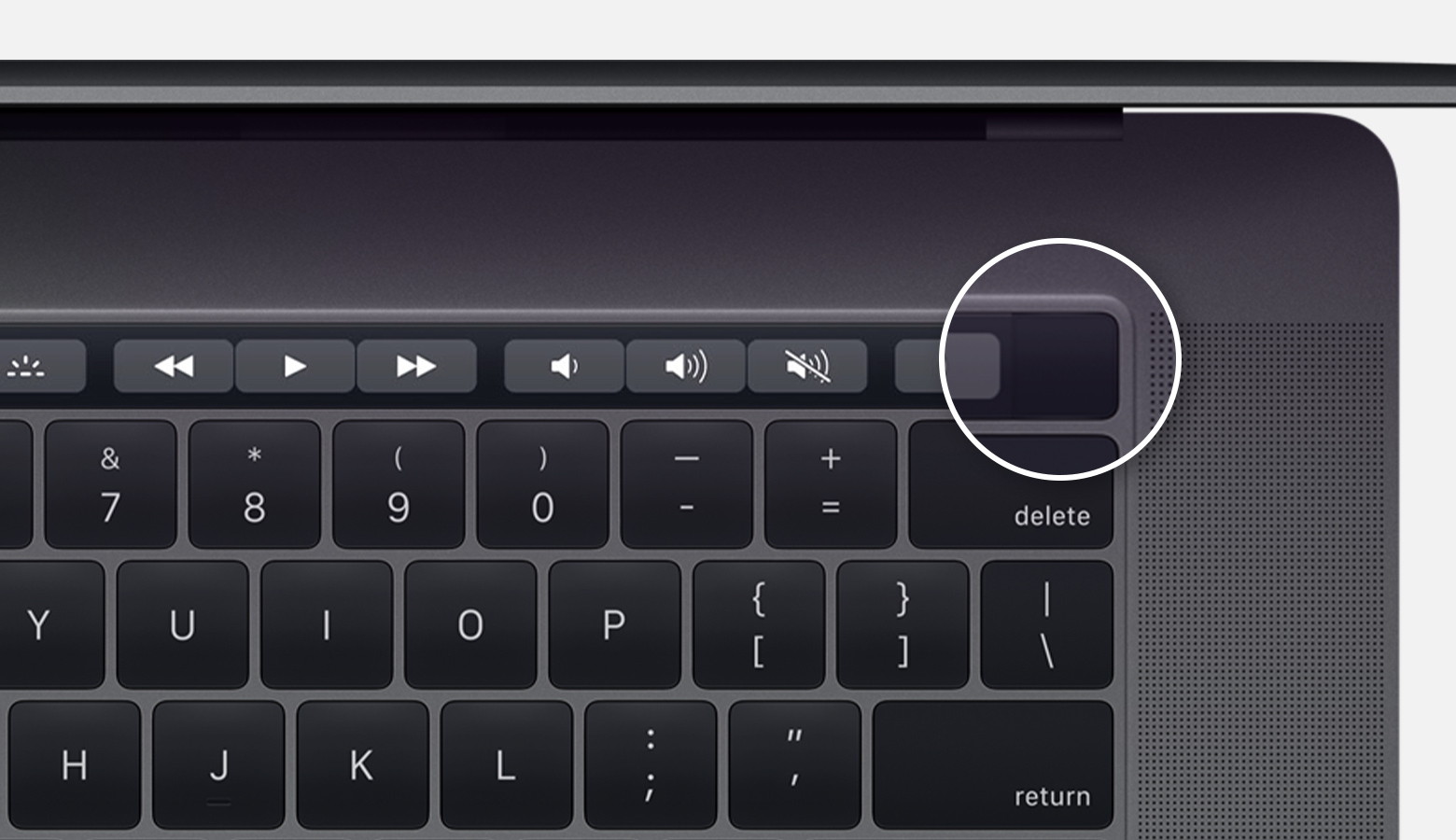
On MacBook Pro models that have a Touch Bar, Touch ID (power button) is on the right side of the Touch Bar at the top of the keyboard.

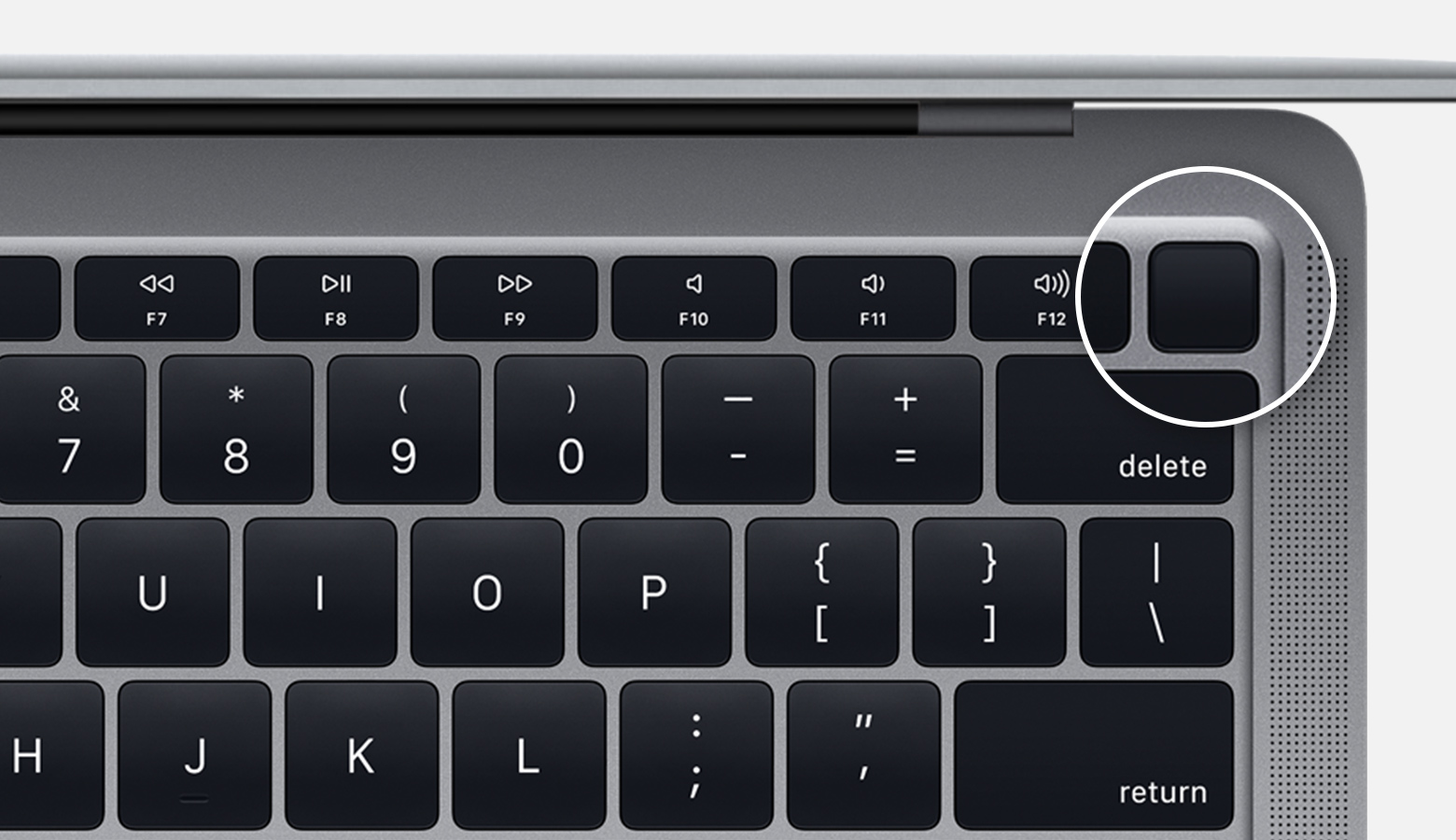
On MacBook Air models introduced in 2018 or later, Touch ID (power button) is on the right side of the function keys at the top of the keyboard.

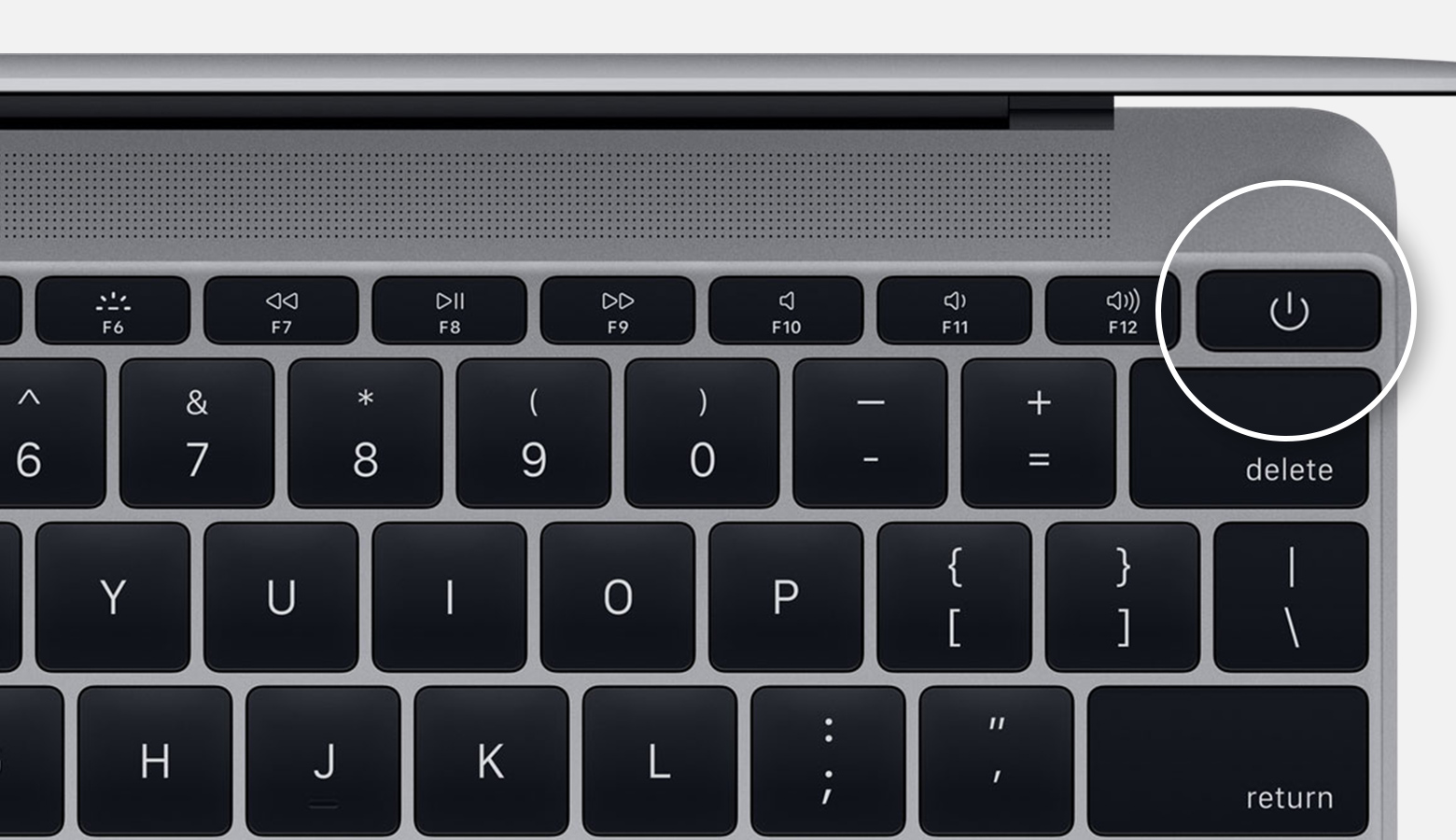
On Mac notebooks with physical function (F1–F12) keys, the power button is a key in the top-right corner of the keyboard.
Newer Mac notebooks also turn on when you do these things:
  • Open the lid of your Mac, even if it's not connected to power.
  • Connect your Mac to a power adapter while its lid is open.
Additionally, MacBook Pro and MacBook Air models introduced in 2018 or later turn on when you press any key on the keyboard or press the trackpad.

If you need help with your Apple product contact the Apple Users Group:

LABELS INDEX:

* (5) 2038 Problem (1) 3G - Goodbye (1) 5G (2) Abine Blur (1) Activation Lock (1) ADAS (1) Add sound to Impress (2) Address Book (1) AirTags (3) Amazon (3) Android (2) Android phone (2) Annoying Ads (1) Anti-Virus (1) App Store (1) Apple Bytes-2019 (12) Apple Bytes-2020 (19) Apple Bytes-2021 (13) Apple Bytes-2022 (10) Apple Bytes-2023 (11) Apple Glass (1) Apple Maps (1) Apple Repair (2) Apple Support (2) Apple TV (1) Apple Watch (6) Archives of CTC (7) ARM M1 Processor (1) Attachments (1) Audio Files (1) Autonomous (1) Avast (1) Backups (3) Bank-fraud (1) Battery Icon (1) Battery life (4) Battery Replacement (1) BCC (1) Best Buy (1) Big Data Mining (1) Big Sur (1) Bloatware (1) Board Minutes 2019 (12) Board Minutes 2020 (12) Board Minutes 2021 (12) Board Minutes 2022 (12) Board Minutes 2023 (12) Board Minutes 2024 (2) Boom Supersonic (1) Browser Attack (1) Browser Settings (1) Browser Tabs (1) browsers (1) Cache (1) Camera App (1) Caps Lock Indicator (1) Car charging (1) Car Door Lock (1) Cell phone strength (1) Cell Phones (1) Charge Cycles (1) Chevy Bolt (2) Chrome browser (2) Chromecast (1) Clone vs Image (1) Cloud Computing (1) Colorado (1) Construction (1) Contact Removal (1) Converting CDs (1) coronavirus (1) Coupons (1) COVID-19 (1) Covid-19 Detection (1) CPAP Recall (1) CTC 2023 ISP Survey (1) Customer Support (1) Dash Cams (1) Default browser (1) Delete Apps (2) Digital Estate Planning (1) Disable Thumbnails (1) Disk image (2) DogWalk malware (1) Domino's (1) Download Videos (1) Drive Partition (1) Driver Assistance (1) Drones (3) Drywall (1) DuckDuckGo (4) E-bikes (1) E.A.S.Y Pay (1) ebooks (1) Edge (1) Edge Browser (4) EdgeDeflector (1) Electric Bicycles (2) Electric car batteries (1) Electric Cars (6) Electric Trucks (1) email (1) Email Aliases (1) EV (13) EV Charging (1) External Storage (1) Facebook (4) FaceTime (3) Fake Reviews (1) Fast Charging (1) FBI Warning (1) Fiber Optic Cable (1) FIDO (1) File & Folder Icons (1) Firefox (2) Firefox Relay (1) Fitbit (1) Force Quit (1) Future Tech (1) Gmail (2) Gmail Contact (1) Googerteller App (1) Google (1) Google Maps (1) Google Music (1) Google Play Store (1) Google Search (1) Google TV (1) Group Text (1) Hacking (3) Harley-Davidson (1) Headlights (1) Healthcare (1) ID.4 (1) Identify Music (1) Image vs Clone (1) iMessage (2) Incognito Mode (1) Instagram (1) Intel Drivers (1) Internet Explorer (1) Internet of Things (1) Internet speed (1) iOS 13 (1) iOS 14 (2) iOS 15 (2) iPad (5) iPad Air (1) iPadOS 15 (2) iPhone (16) iPhone 12 (1) iPhone Battery (2) iPhone SE (1) iPod Touch (1) ISO Files (1) ISP Down? (1) Karen's Replicator (1) Keyboard (1) keyboard shortcuts (2) LibreOffice (1) LibreOffice Impress (1) Linux Mint 19.2 (1) Lithium-Iron Phosphate (1) M2 Processor (1) Mac (1) Mac Tips (10) MacBook Air (2) macOS (4) Magnifier (1) Mail App (1) Malware (4) Mars (1) Masked Email (1) meetings (6) Microcomb (1) Microsoft (1) Mirroring Tips (1) Mobile Wi-Fi Hotspot (1) Mouse Speed (1) MyHealtheVet (1) NASA (1) Norton (1) old computers (1) OneDrive (1) Ookla (1) Oregon (1) Oura Rings (1) Outlook (1) Parallels 18 (1) passwords (1) PDF (1) PDF Editing (1) Phishing Scams (1) Phone Data Swap (1) Phone Scams (1) Plug & Charge (1) Pop-Up Blocker (1) Portable EV Chargers (1) print spooler (1) Printer problem (1) printers (2) Privacy (5) Privacy Settings (1) Private Browsing (1) Pro Pilot (1) RAM (1) RAM 1500 REV Pickup (1) Range anxiety (2) Range Extended Vehicle (1) Ransomware (3) Rebooting (1) Recharge Cycles (1) Remote control (1) Robots (1) Roomba robots (1) Router (3) Samsung Drive Storage (1) Samsung Gallery Sync (1) Scams (1) SD Cards (1) Search Engines (3) Search Tips (1) Secret Button (1) Security Flaw (1) Security Key (1) Security Warning (1) Sharing From Phone (1) Short Codes (1) Show Wi-Fi Password (1) Signal Strength (1) Sion (1) Siri (1) SkyDrive (1) Slide Over (1) Slow Internet (1) Smart Glasses (1) Smart Home (1) Smart Toys (1) Smartwatch (1) Solar-powered EV (1) Sono Motors (1) Speed Wars (1) Split Screen (1) Split View (1) Spreadsheets (1) Spy Pixel (1) Start Up (1) Startpage (1) Streaming (1) Streaming Services (1) Street View (1) Surface Duo (1) Surface Earbuds (1) System Tray (1) Tab Syncing (1) Tbps (1) Teams (1) Technology Channels (1) Telegram app (1) Tesla (6) Tesla Adapter (1) Tesla Model 3 (1) Texting (1) Tracking (1) Tracking Pixel (1) Two-Factor Authentication (2) Undo Send (1) Unlock Phone (1) Update problems (1) USB drive (1) USPS Informed Delivery (1) VA access (1) Verizon (1) Vertical TV (1) Video Conferencing (1) Videos (3) Voice Assistant (1) Vultur (1) VW (1) Web Beacon (1) WhatsApp (1) wi-fi (2) Wi-Fi Hotspot (1) Widgets (1) Win 10 Performance (5) Windows (1) Windows 10 (9) Windows 10 Tips & Tricks (1) Windows 11 (8) Windows 7 (1) Windows S Mode (1) Windows Update (1) Windows update problem (1) Wink (1) Winstall (1) Yahoo mail (1) Yippy (1) You've Been Hacked (1) YouTube (1) Zero Emissions (1) Zoom (2)